






















Certification Courses
Hands-On Labs
Threat Intelligence
Latest Cyber News
MITRE ATT&CK Breakdown
All Cyber Keywords
Have you ever noticed the little padlock icon next to a website's address and wondered what it really means? Or have you encountered a scary warning saying "Your connection is not private" and didn't know what to do? If so, you've already encountered the invisible guardian of the internet: the digital certificate. This powerful security tool works silently behind the scenes to protect every sensitive piece of information you send online.
In simple terms, a digital certificate is like a virtual passport or ID card for websites and servers. It's issued by trusted authorities called Certificate Authorities (CAs) and serves two critical purposes: proving a website is who it claims to be (authentication) and creating a secure, encrypted tunnel for your data. Without it, the internet would be a dangerous place where hackers could easily steal your passwords, credit card numbers, and personal information.
In this complete beginner's guide, you'll learn: what digital certificates really are, why they're non-negotiable for your safety, how to spot a fake one, and the simple steps you can take to ensure you're always protected when browsing online.
Every day, we trust the internet with our most sensitive information, banking details, private messages, medical records, and more. The digital certificate is the fundamental technology that makes this trust possible. It's not just a technical detail; it's the foundation of secure communication on the modern web.
Consider this: according to recent data from the Cybersecurity and Infrastructure Security Agency (CISA), man-in-the-middle attacks, where attackers intercept communications between users and websites, remain one of the most common threats. A properly implemented digital certificate is your primary defense against this type of attack.
The National Institute of Standards and Technology (NIST) explicitly recommends TLS (which relies on digital certificates) for protecting sensitive data in transit. When you see "https://" in your browser's address bar (the 's' stands for secure), you're seeing a digital certificate in action.
For everyday users, understanding digital certificates means understanding when a connection is truly safe. It helps you avoid phishing sites, protects your data on public Wi-Fi, and gives you confidence that the website you're visiting is legitimate. In our increasingly digital world, this knowledge isn't just helpful, it's essential for your online safety.
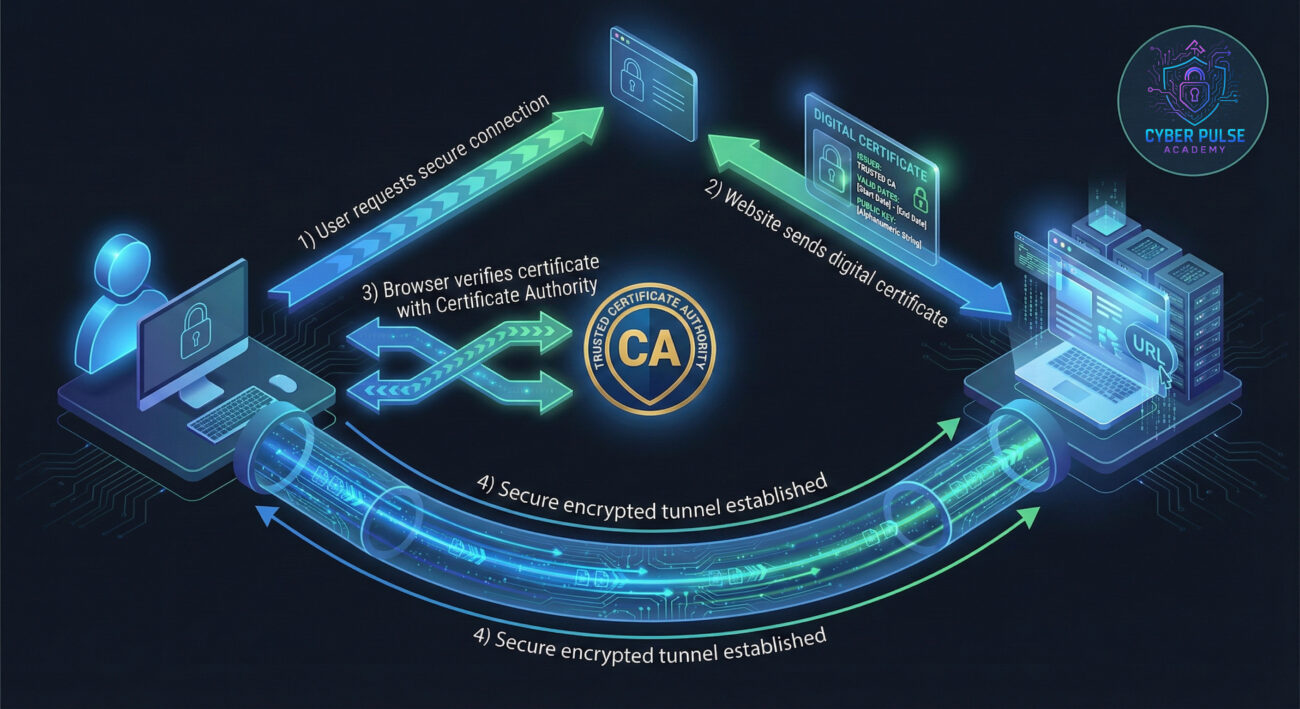
Let's break down the technical jargon into simple, relatable concepts you can actually understand and use.
| Term | Simple Definition | Everyday Analogy |
|---|---|---|
| Certificate Authority (CA) | A trusted organization that issues and verifies digital certificates, the "digital notary public" of the internet. | Like the DMV issuing your driver's license. You trust the license because you trust the government agency that issued it. |
| Public Key & Private Key | A matched pair of cryptographic keys. The public key locks (encrypts) data, and only the corresponding private key can unlock (decrypt) it. | Like a padlock and key. Anyone can use the padlock (public key) to lock a box, but only you have the unique key (private key) to open it. |
| Encryption | The process of scrambling readable data into an unreadable format to protect it from unauthorized access. | Like writing a message in a secret code that only someone with the decoder ring can read. |
| SSL/TLS | Security protocols that use digital certificates to create secure channels between your browser and websites. HTTPS is HTTP over TLS/SSL. | Like building a private, soundproof tunnel between you and a friend so no one else can hear your conversation. |
| Expired/Revoked Certificate | A certificate that is no longer valid, either because its time limit has passed or it was intentionally invalidated due to a security breach. | Like trying to use an expired passport or a credit card you reported stolen. It's no longer valid identification. |
Meet Alex, a freelance graphic designer who often works from coffee shops. One afternoon, Alex needs to submit an important project file to a client portal while connected to "CoffeeShop-Free-WiFi." Unbeknownst to Alex, a hacker has set up a malicious hotspot with the same name, a classic evil twin attack.
The Risk Without Digital Certificates: If the client portal didn't use a valid digital certificate, Alex's login credentials and the sensitive project file would be transmitted in plain text. The attacker could easily intercept everything, gaining access to Alex's client account and proprietary work.
The Protection With Digital Certificates: Fortunately, Alex's client uses a secure portal with proper TLS encryption. When Alex connects, the portal presents its digital certificate. Alex's browser automatically checks this certificate against trusted CAs. Since the attacker can't provide a valid certificate for the real domain, the browser displays a clear warning: "Your connection is not private." This warning, triggered by the certificate check, stops Alex from proceeding and potentially prevents a major data breach.
| Stage | What Happened | Impact & Outcome |
|---|---|---|
| 1. Setup | Attacker creates a fake Wi-Fi network named "CoffeeShop-Free-WiFi" identical to the legitimate one. | Creates a trap for unsuspecting customers like Alex. |
| 2. Connection | Alex connects to the fake Wi-Fi and navigates to the client portal. The traffic is intercepted. | All communication now flows through the attacker's system. |
| 3. Certificate Request | Alex's browser requests the site's digital certificate. The attacker's system fails to provide a valid one. | The browser's security checks detect the vulnerability. |
| 4. Warning & Protection | Browser displays a full-page security warning about the invalid certificate. | Alex decides not to proceed, and the secure certificate protocol successfully prevents the attack. |
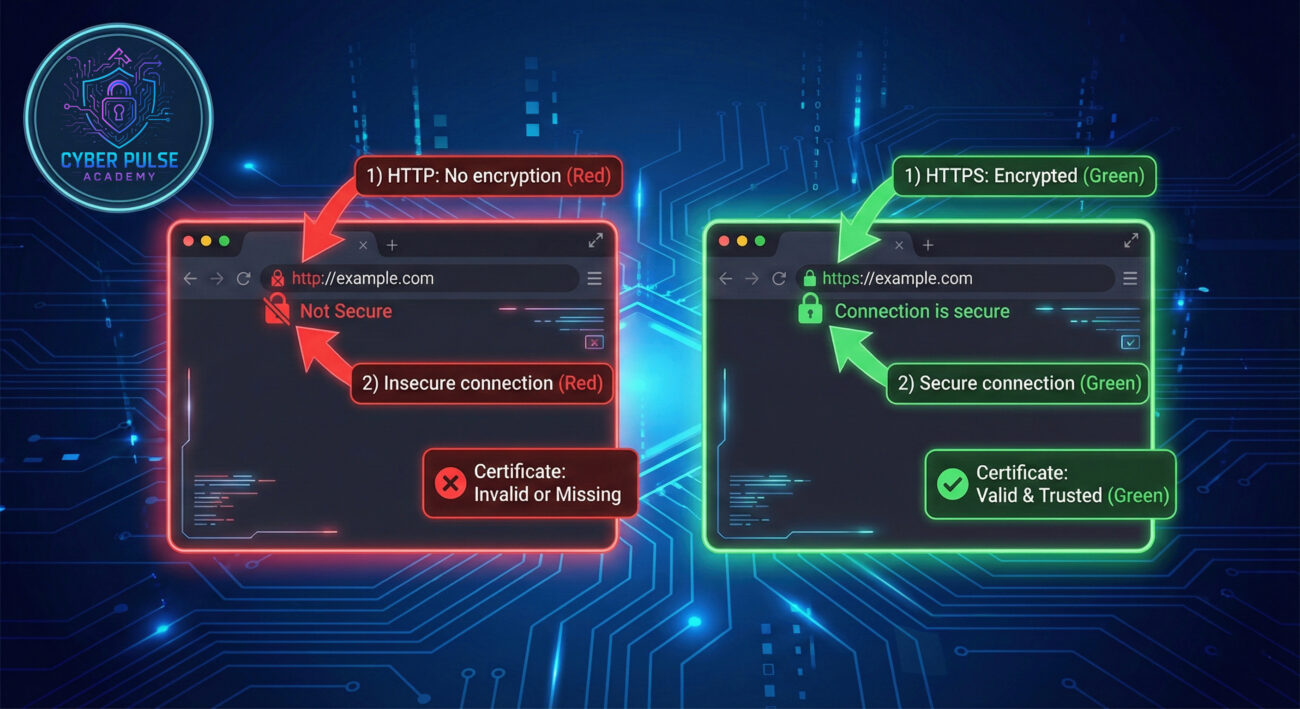
You don't need to be a cybersecurity expert to check if a website is using a valid digital certificate. Follow these simple steps every time you're entering sensitive information.
Action: Before typing passwords or credit card info, check the address bar.
Action: Click directly on the padlock icon to open certificate information.
Action: Examine the certificate details carefully.
Action: Treat security warnings as serious alerts.
Action: Maintain current browser and operating system versions.
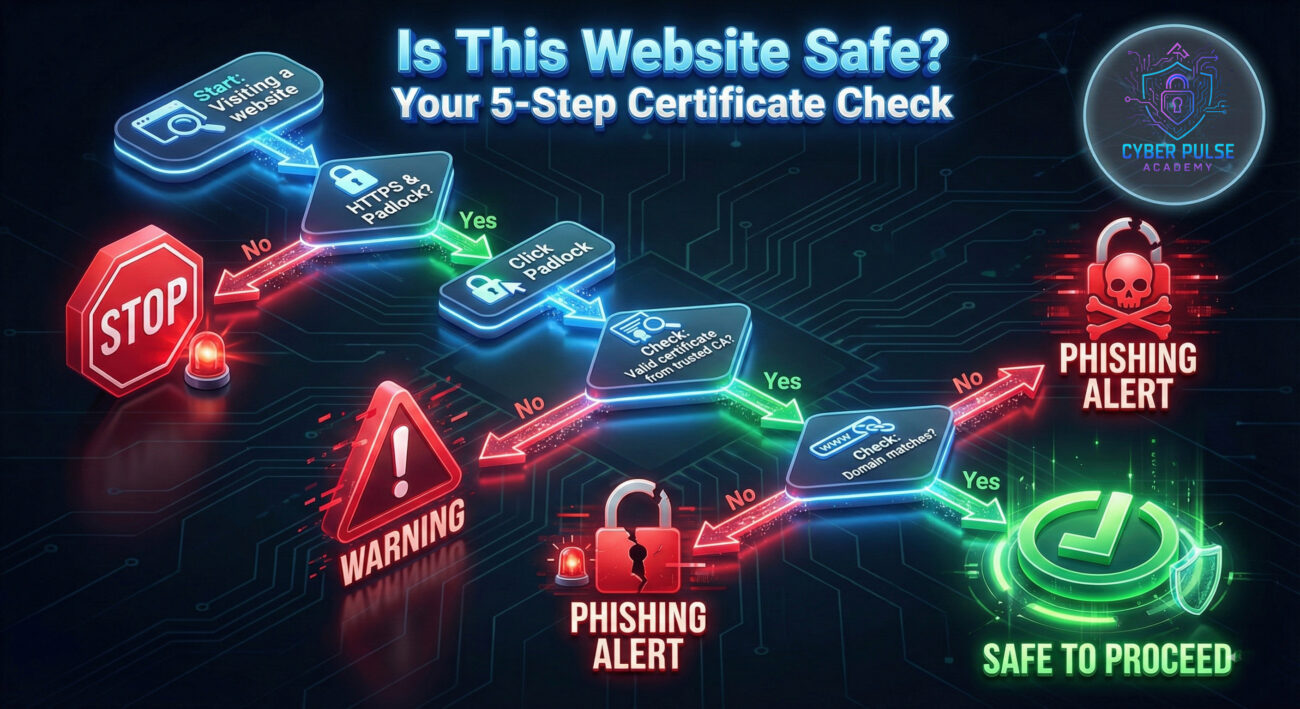
Let's examine how attackers think about digital certificates. A common tactic is creating a convincing phishing site for a popular service (like a bank or email provider) and obtaining a legitimate-looking certificate for a similar-sounding domain. For example, they might register "secure-g00gle.com" (with zeros instead of o's) and get a free certificate for it. The site will display a padlock, making it appear secure to casual users.
The defender's counter-strategy focuses on user education and verification. While the attacker's site has a valid certificate, careful users will notice the domain name doesn't match the legitimate service ("g00gle.com" vs "google.com"). Training yourself and others to always check the actual domain name in the address bar, not just look for the padlock, completely defeats this attack. This shows that effective security combines technology (the certificate system) with human vigilance.
To a hacker or red teamer, a digital certificate represents both an obstacle and an opportunity. They constantly look for weaknesses: expired certificates that users might ignore, misconfigured servers using outdated encryption, or the chance to steal a private key from poorly secured systems. Their goal is to break the chain of trust, either by bypassing it entirely, creating convincing fakes, or finding ways to trick Certificate Authorities. They view certificates as locks to be picked or doors to be opened through social engineering or technical exploits.
For cybersecurity defenders (blue team), digital certificates are fundamental infrastructure that requires careful management. Their focus is on the complete lifecycle: proper issuance, regular renewal, immediate revocation if compromised, and continuous monitoring. They implement automated systems to track all certificates in their organization, ensure they use strong encryption standards (like TLS 1.3), and maintain comprehensive inventories. Their mindset is proactive, preventing breaches through rigorous certificate hygiene rather than reacting to incidents.
Understanding digital certificates transforms you from a passive internet user into an active participant in your own cybersecurity. These invisible guardians work tirelessly to protect your sensitive information, but they require your awareness to be fully effective.
Here's your essential security checklist:
Remember: a digital certificate is more than just a technical detail, it's your assurance that you're communicating with a legitimate website through a secure, encrypted connection. By applying what you've learned today, you're taking a powerful step toward safer online experiences.
Did this guide help demystify digital certificates for you? Do you have questions about specific browser warnings you've encountered? What other cybersecurity topics would you like explained in simple, beginner-friendly terms?
Share your thoughts, experiences, or questions in the comments below! Let's build a community of security-aware internet users together.
Every contribution moves us closer to our goal: making world-class cybersecurity education accessible to ALL.
Choose the amount of donation by yourself.
1 Comment
Thanks for sharing. I read many of your blog posts, cool, your blog is very good.