
















































Certification Courses
Hands-On Labs
Threat Intelligence
Latest Cyber News
MITRE ATT&CK Breakdown
All Cyber Keywords
On February 24, 2026, Mozilla will release Firefox 148 with a groundbreaking privacy feature: a single toggle that disables all current and future generative AI capabilities. This move puts users firmly in the driver's seat, addressing growing concerns about data collection, privacy risks, and the opaque nature of AI in everyday tools. Whether you're a privacy enthusiast or just getting started, this guide breaks down exactly how to take control and why it matters for your digital footprint.
The new AI controls panel lets you manage features like AI-powered tab grouping, chatbot sidebar, and automatic alt text in PDFs, all from one place. For the first time, you can block AI enhancements with a single click, ensuring no pop-ups or background processes sneak through. This isn't just about preference; it's about reducing your attack surface and aligning with defense-in-depth principles. Below, we'll explore each feature, the step-by-step method to disable them, and even map potential threats to the MITRE ATT&CK framework.
Firefox's integration of generative AI is designed to enhance browsing, but each feature carries potential privacy implications. Here are the five AI features controlled by the new toggle, as announced by Mozilla's head Ajit Varma:
Each of these can improve productivity, but they also expand the data flow between your browser and external services. For cybersecurity professionals, this is a classic trade-off: convenience vs. confidentiality.
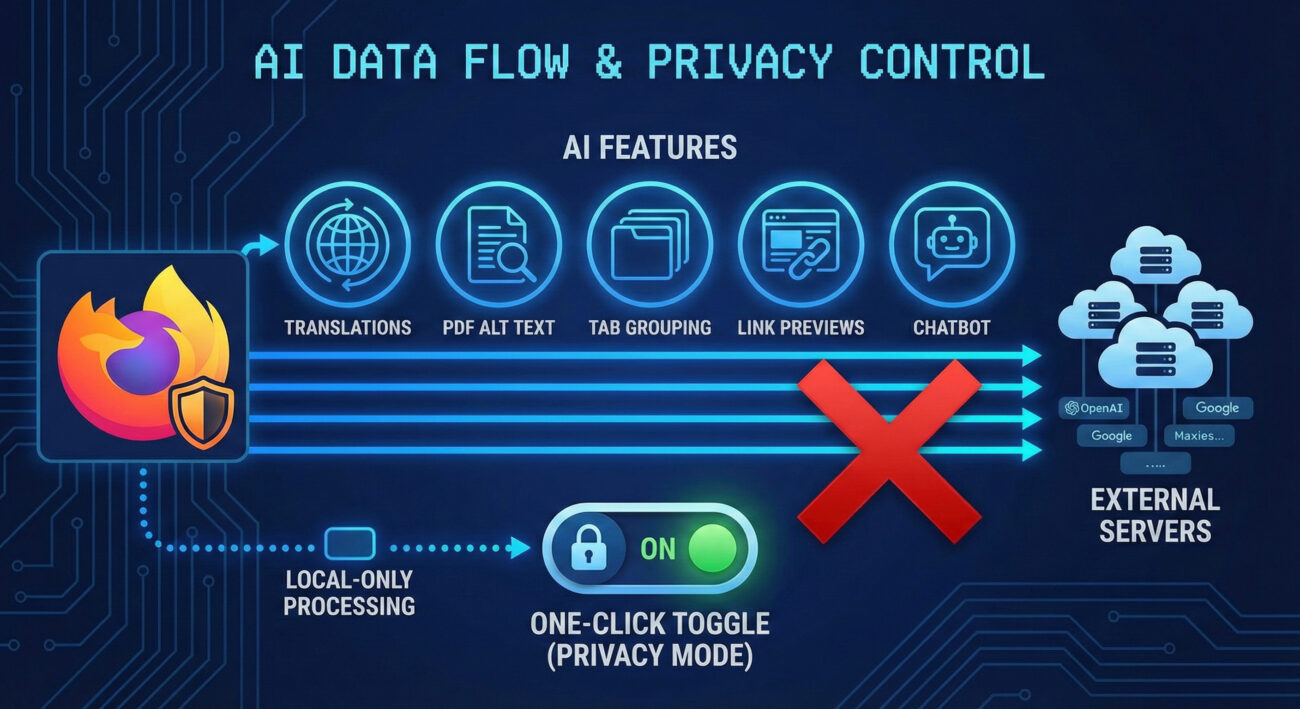
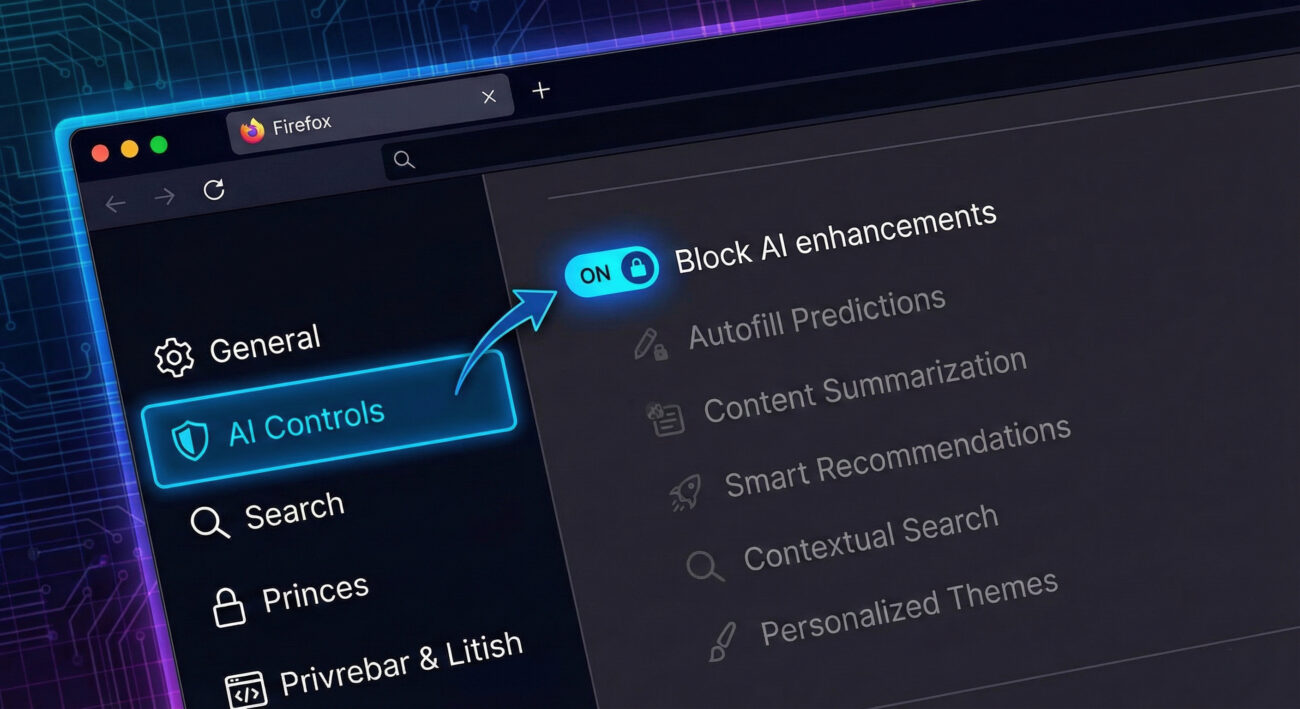
Mozilla’s new control is a simple toggle switch labeled "Block AI enhancements" located in Firefox's Settings under a new "AI Controls" section. When activated, it does two things:
This is a global kill switch, not just a per-feature opt-out. As Mozilla's new CEO Anthony Enzor-DeMeo stated: "AI should always be a choice – something people can easily turn off." This design respects user agency and aligns with privacy-by-default principles.
Follow these simple steps to lock down your browser from AI features. The process takes less than a minute.
Ensure you're running Firefox 148 or later. Go to Menu → Help → About Firefox. The browser will automatically check for updates. If 148 is available, download and restart.
Click the hamburger menu (☰) in the top-right corner and select Settings (or type about:preferences in the address bar).
In the left sidebar, look for the new "AI Controls" section. It's typically located between "Privacy & Security" and "Sync".
Find the option "Block AI enhancements" and toggle it ON. The setting will turn blue and immediately disable all generative AI features. No restart required.
If you prefer to keep some AI tools, you can leave the master toggle OFF and manually enable/disable each feature below. But for maximum privacy, we recommend the global block.
While AI features are not inherently malicious, they expand the attack surface. If a threat actor compromises Firefox or one of the integrated AI services, the following MITRE ATT&CK techniques could be leveraged:
| AI Feature | Potential Risk | MITRE ATT&CK Technique (ID) |
|---|---|---|
| Translations / Link previews | Page content sent to cloud servers → data interception or unapproved collection | T1074.001 Data Staged: Local Data Staging (if data cached locally before exfiltration) / T1048 Exfiltration Over Alternative Protocol |
| AI Chatbot Sidebar | Conversations containing sensitive info sent to third-party AI providers → data leakage | T1119 Automated Collection (if adversary uses API to gather user input) |
| Tab grouping / PDF alt text | Local analysis may create metadata about your activity; if synced, could be exposed | T1083 File and Directory Discovery (if PDFs are scanned without consent) |
By using the one-click block, you effectively mitigate these techniques by eliminating the data flow. This aligns with the MITRE D3FEND concept of "Outbound Traffic Filtering", but at the application level.
Understanding both attacker and defender viewpoints helps appreciate the value of this simple toggle.
Even with a simple toggle, users can slip up. Here’s what to avoid and what to embrace.
No. The AI features are optional enhancements. Websites will function normally; you just lose AI-generated summaries, auto-grouping, etc.
Yes. According to Mozilla, the toggle blocks "current and future generative AI features." Any new AI tool will respect this global setting.
Absolutely. Turn off the master toggle, then scroll down and manually enable any feature you trust (e.g., local translations).
Potentially. AI models can consume CPU/GPU and memory. Disabling them may free up resources, especially on older machines.
Visit Mozilla's official privacy page and the Firefox support site.
Don't wait for Firefox to update automatically. Check for Firefox 148 today and enable the AI kill switch. Share this guide with friends who care about privacy. For deeper dives into browser security, explore our other posts:
External resources to bookmark:
© Cyber Pulse Academy. This content is provided for educational purposes only.
Always consult with security professionals for organization-specific guidance.
Every contribution moves us closer to our goal: making world-class cybersecurity education accessible to ALL.
Choose the amount of donation by yourself.