








Certification Courses
Hands-On Labs
Threat Intelligence
Latest Cyber News
MITRE ATT&CK Breakdown
All Cyber Keywords
Remember when your computer took forever to start, showed strange error messages, or worse, wouldn't boot at all? What if I told you there's a type of malware so sneaky it attacks before your operating system even loads? That's the boot sector virus, one of the oldest yet most dangerous forms of computer malware that still poses a threat today.
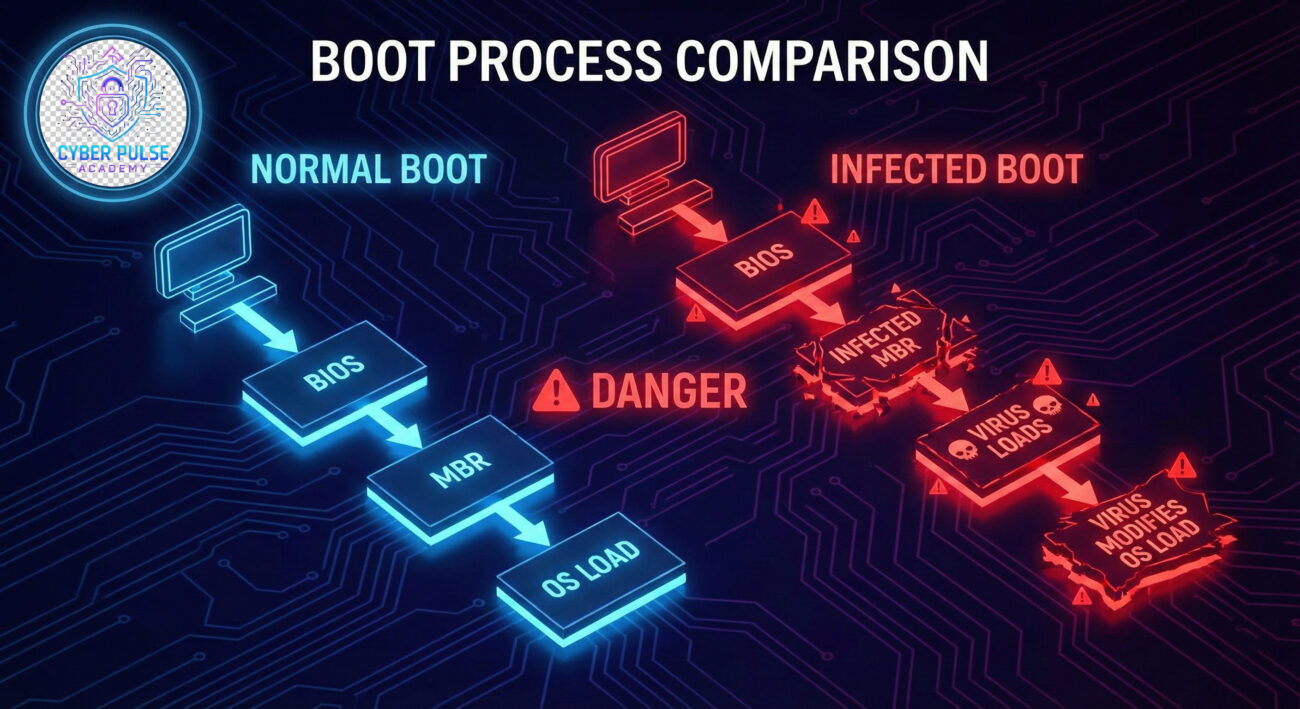
A boot sector virus is malicious software that infects the master boot record (MBR) of a storage device, giving it control over your computer from the very moment you press the power button. Think of it like a burglar who sneaks into your house and hides in the foundation, they're there before you even unlock the front door.
In this beginner-friendly guide, you'll learn exactly what boot sector viruses are, how they work, real-world examples that changed cybersecurity history, and most importantly, 7 practical steps to protect your devices from this stealthy threat. No technical background required!
You might think boot sector viruses are relics of the 1990s, but they've evolved and remain a serious threat. According to the Cybersecurity & Infrastructure Security Agency (CISA), legacy threats often resurface in new forms, and boot sector malware has been detected in recent cyber attacks targeting critical infrastructure.
The dangerous power of a boot sector virus lies in its privileged position. By infecting the master boot record, it loads before your antivirus software, before your operating system, and before any security measures you have in place. This gives it complete control to hide other malware, steal data, or render your system unusable.
Modern boot sector viruses can spread through infected USB drives, malicious email attachments disguised as documents, or even through network vulnerabilities. The 2018 "Satana" ransomware, for example, used boot sector infection techniques to encrypt entire hard drives, demanding cryptocurrency payments from victims.
| Term | Simple Definition | Everyday Analogy |
|---|---|---|
| Boot Sector | The first sector of a storage device that contains code to start the operating system | Like the ignition switch in your car, it's where everything begins |
| Master Boot Record (MBR) | A special type of boot sector that tells the computer how to load the OS | Like a building's foundation blueprint, it guides the entire construction |
| Infection Vector | The method a virus uses to spread from one system to another | Like a cold virus spreading through handshakes or shared objects |
| Secure Boot | A security standard that ensures only trusted software loads during startup | Like a bouncer checking IDs before letting anyone into a club |
| Resident Virus | A virus that stays in memory and can reactivate even after removal attempts | Like a weed with deep roots that keeps growing back |
Alex, a freelance graphic designer, borrowed a USB drive from a colleague to transfer some project files. What seemed like a harmless favor turned into a cybersecurity nightmare. The USB drive contained a boot sector virus that had been dormant since it was infected months earlier.
When Alex plugged the drive into his Windows laptop, the virus didn't activate immediately. It waited until the next restart. As Alex's computer booted up, the virus copied itself from the USB drive to his laptop's master boot record. From that moment, every time Alex started his computer, the virus loaded first.
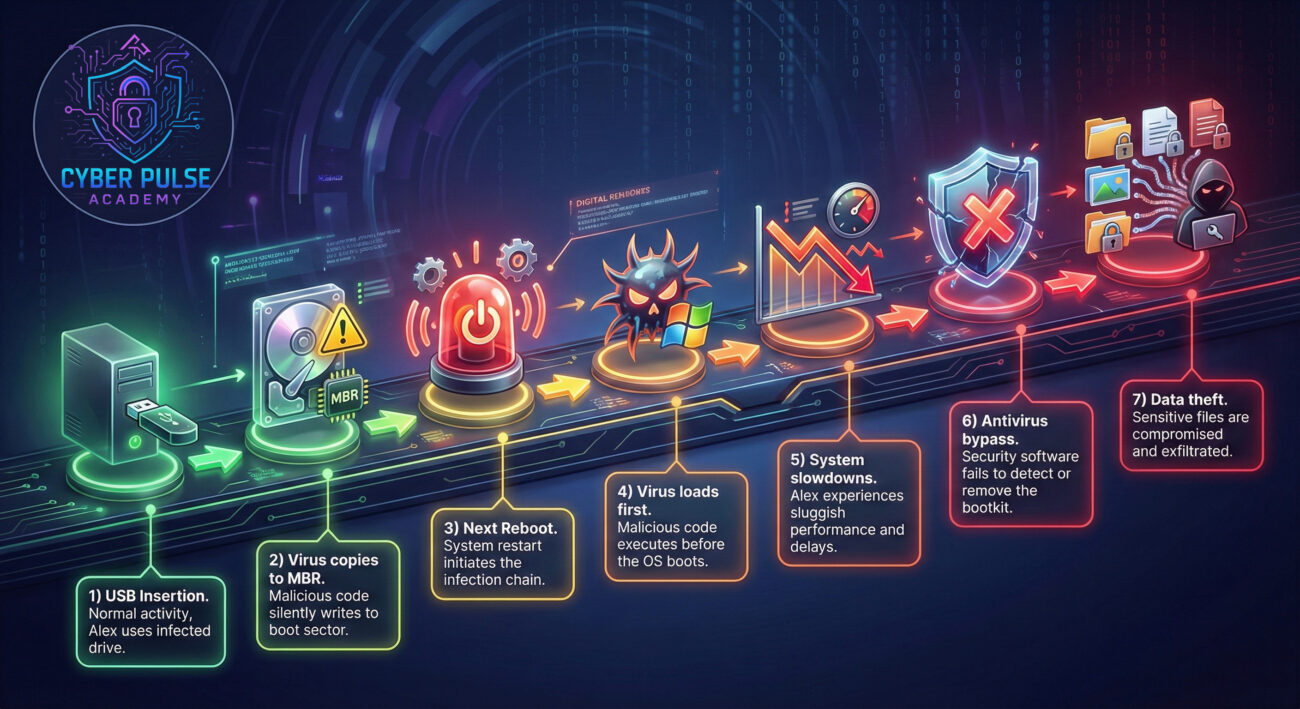
| Time/Stage | What Happened | Impact |
|---|---|---|
| Day 1: USB Insertion | Alex plugs in infected USB drive to transfer files | No visible impact – virus remains dormant |
| Day 1: First Reboot | Virus copies itself to laptop's master boot record | Subtle changes – boot time increases slightly |
| Day 2-5: Regular Use | Virus loads before OS each boot, begins stealing data | Performance degradation – system slows, strange errors appear |
| Day 6: Antivirus Scan | Alex runs antivirus, but virus hides from detection | False security – scan shows "clean" but virus remains |
| Day 7: Full Compromise | Virus delivers ransomware payload, encrypts files | Critical failure – system unusable, data held hostage |
Fortunately, Alex had recent backups (a best practice we'll discuss later). He was able to clean the infection by using a bootable antivirus tool from another computer, which runs outside the infected operating system and can detect boot sector viruses that normal scans miss.
Secure Boot is a security feature that prevents unauthorized software (like boot sector viruses) from loading during startup. Here's how to enable it:
Note: Some older operating systems or hardware might not support Secure Boot. Check compatibility first.
Since USB drives are common infection vectors, treat them with caution:
Regular antivirus scans might miss boot sector viruses. Use boot-time scanning instead:
Regular updates patch security vulnerabilities that viruses exploit:
Backups won't prevent infection, but they make recovery possible:
Learn what normal booting looks like so you can spot anomalies:
Awareness is your best defense against all malware:
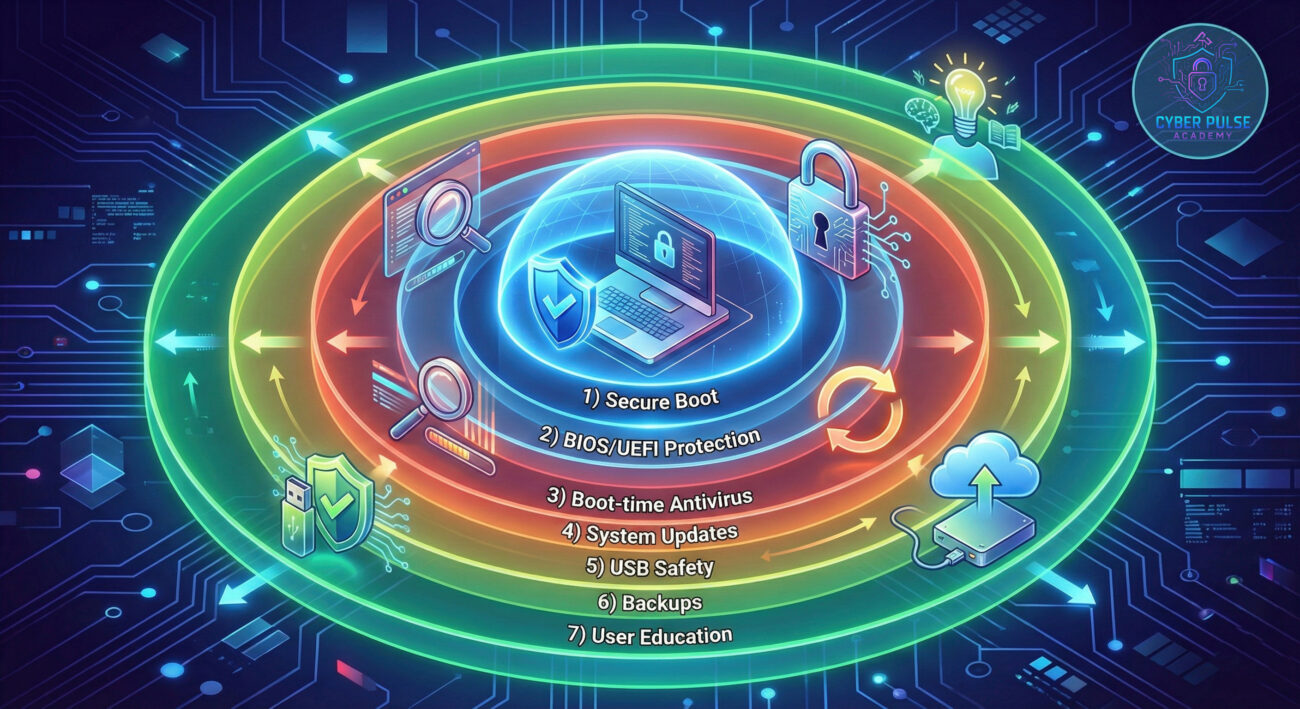
Understanding how attackers think helps you defend better. From a threat hunter's perspective, boot sector viruses are attractive because they provide persistence, the ability to survive reboots and removal attempts.
Attack Path Example: An attacker might leave infected USB drives in a company parking lot (a tactic called "USB dropping"). When an employee finds and plugs in the drive, the boot sector virus installs itself silently. The attacker now has a foothold that survives antivirus scans and even operating system reinstallation in some cases.
Defender's Counter-Move: Security teams monitor for changes to master boot records using specialized tools. They also implement policies that prevent unauthorized USB devices from mounting, and educate employees about physical social engineering tactics. Regular integrity checks of boot sectors can detect modifications that indicate infection.
To a red teamer (ethical hacker simulating attacks), boot sector viruses represent an opportunity for maximum persistence. They're looking for systems without Secure Boot, outdated BIOS firmware, or users who regularly use untrusted USB devices. The goal isn't just to infect, it's to maintain access even if the victim detects and removes other malware.
Attackers value boot sector infections because they can:
Blue teams (defenders) see boot sector viruses as a high-severity threat that requires specific defenses. They focus on prevention through Secure Boot, detection through boot sector integrity monitoring, and recovery through tested backups. Defense isn't just about blocking, it's about ensuring business continuity if infection occurs.
Defenders prioritize:
Boot sector viruses might be old-school, but they remain a dangerous threat because they attack at the most fundamental level of your computer, the boot process. Here's what every beginner should remember:
The cybersecurity landscape constantly evolves, but fundamental threats like the boot sector virus teach us an important lesson: defense must begin at the very start of the computing process. By understanding how these threats work and implementing layered protections, you can significantly reduce your risk.
Now that you understand boot sector viruses, what cybersecurity topic would you like us to explain next? Have you ever encountered a boot-related issue that might have been malware?
Share your thoughts, questions, or experiences in the comments below! Your questions help us create better guides for the cybersecurity community.
Want to dive deeper? Check out our beginner's guide to different types of malware or learn about implementing Secure Boot on various operating systems.
Educational Resources: CISA Cybersecurity Basics | NIST Cybersecurity Framework | US-CERT Security Tips
© 2026 Cyber Pulse Academy. This content is provided for educational purposes only.
Always consult with security professionals for organization-specific guidance.
Every contribution moves us closer to our goal: making world-class cybersecurity education accessible to ALL.
Choose the amount of donation by yourself.